Setup Guide
How to install & use SlapWindows
Follow these steps in order. The whole setup takes about 2 minutes.
Start here
Purchase SlapWindows
Go to the pricing section on the homepage. Enter your name and email address, then click Get SlapWindows — $3. You will be redirected to a secure checkout page to complete your payment.
Check your email for the license key
Within a few seconds of payment, you will receive an email with your personal license key. It looks like this:
Copy this key — you will need it in Step 5.
Download SlapWindows.exe
In the same email, click the Download SlapWindows.exe button. The file will download to your computer.
Run the app — handle the Windows warning
Double-click SlapWindows.exe. Windows will show a blue security warning — this is normal for indie apps. Here is exactly what to do:
Click "More info" on the blue warning screen.
Click "Run anyway" that appears at the bottom.
The SlapWindows activation dialog will open.
Why does this warning appear?
Windows SmartScreen flags apps that don't have a paid code-signing certificate. SlapWindows is safe — it only accesses your microphone to detect slap sounds. It does not collect or transmit any data.
Enter your license key
The activation window will appear asking for your license key.
👋 SlapWindows
Enter your license key to activate
Format: SLAP-XXXX-XXXX-XXXX-XXXX
Open the email you received in Step 2.
Copy your license key (starts with SLAP-).
Paste it into the activation box.
Click "Activate SlapWindows".
The app is now running in your system tray
Once activated, SlapWindows runs silently in the background. Look for the red circle icon in your system tray — the row of small icons in the bottom-right corner of your taskbar.

Right-click the tray icon to open the full menu:
Slap your laptop
With the app running, firmly slap your desk, your laptop lid, or the side of your laptop. The microphone will detect the impact and play a sound from your selected pack.
Customize your sound pack
Right-click the tray icon → Sound Pack to choose your pack and a specific sound.
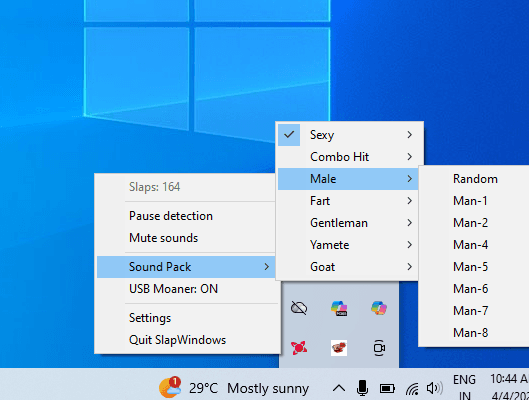
Tray menu → Sound Pack (12 packs)
New in v2.0.0
Angry → Random, Sound 1...Metal → Random, Sound 1...
Santa → Random, Sound 1...
Evil Laugh → Random, Sound 1...
Robot → Random, Sound 1...
Custom → your uploaded sounds
Click any pack name to expand it, then select a specific sound — or choose Random to play a different sound every slap.
Sound Pack
Choose from 12 packs — Special, Combo Hit, Male, Fart, Gentleman, Yamete, Goat, Angry, Metal, Santa, Evil Laugh, Robot, Custom.
Sensitivity
Controls how loud the impact needs to be. Increase if slaps aren't detected.
Cooldown
Minimum time between two triggers. Prevents rapid-fire sounds.
Volume
Master volume for all sound packs.
USB Sound
Plays a sound every time you plug or unplug a USB device.
Custom Sounds
Upload your own MP3 or WAV files. Click "Upload Sounds" in Settings, select your files, then restart the app and select the Custom pack from the tray.
Using Custom Sound Upload (v2.0.0)
You can now upload your own MP3 or WAV files and use them as your slap sound. Make your laptop scream in any voice you want.
Right-click tray icon → Settings.
Scroll down to "Custom Sounds" section.
Click "📂 Upload Sounds" and select your MP3 or WAV files.
Close and reopen SlapWindows.
Right-click tray icon → Sound Pack → Custom → select your sound.
Slap your laptop and hear your custom sound! 👋
Settings → Custom Sounds
3 file(s) uploaded
Common issues
The app opens but no sound plays when I slap.
Try these in order: (1) Make sure your speakers or headphones are not muted. (2) Open Settings and increase Sensitivity. (3) Make sure Windows has microphone access — go to Windows Settings → Privacy → Microphone → allow desktop apps.
I don't see the tray icon.
Click the ▲ arrow in the bottom-right of your taskbar to reveal hidden icons. SlapWindows runs there. You can drag the icon out to always show it.
My license key is not working.
Make sure you are copying the full key including the SLAP- prefix (e.g. SLAP-A1B2-C3D4-E5F6-G7H8). If it still fails, your internet connection may be down — the app needs to connect once to validate your key.
I lost my license key email.
Email us at amitkush.dev@gmail.com with the email address you used to purchase. We'll resend your key.
My custom sounds are not showing in the tray menu.
After uploading custom sounds in Settings, you must close and reopen SlapWindows once. The tray menu builds at startup — a restart is needed to load new files.
Windows Defender is flagging the app as a virus.
This is a false positive. You can add an exclusion in Windows Security → Virus & threat protection → Exclusions → add SlapWindows.exe. If you're still not comfortable, email us and we'll walk you through it.